
✨ Improvements
🚀 New Feature
🔐 The Encrypted Data Vendor, rebuilt
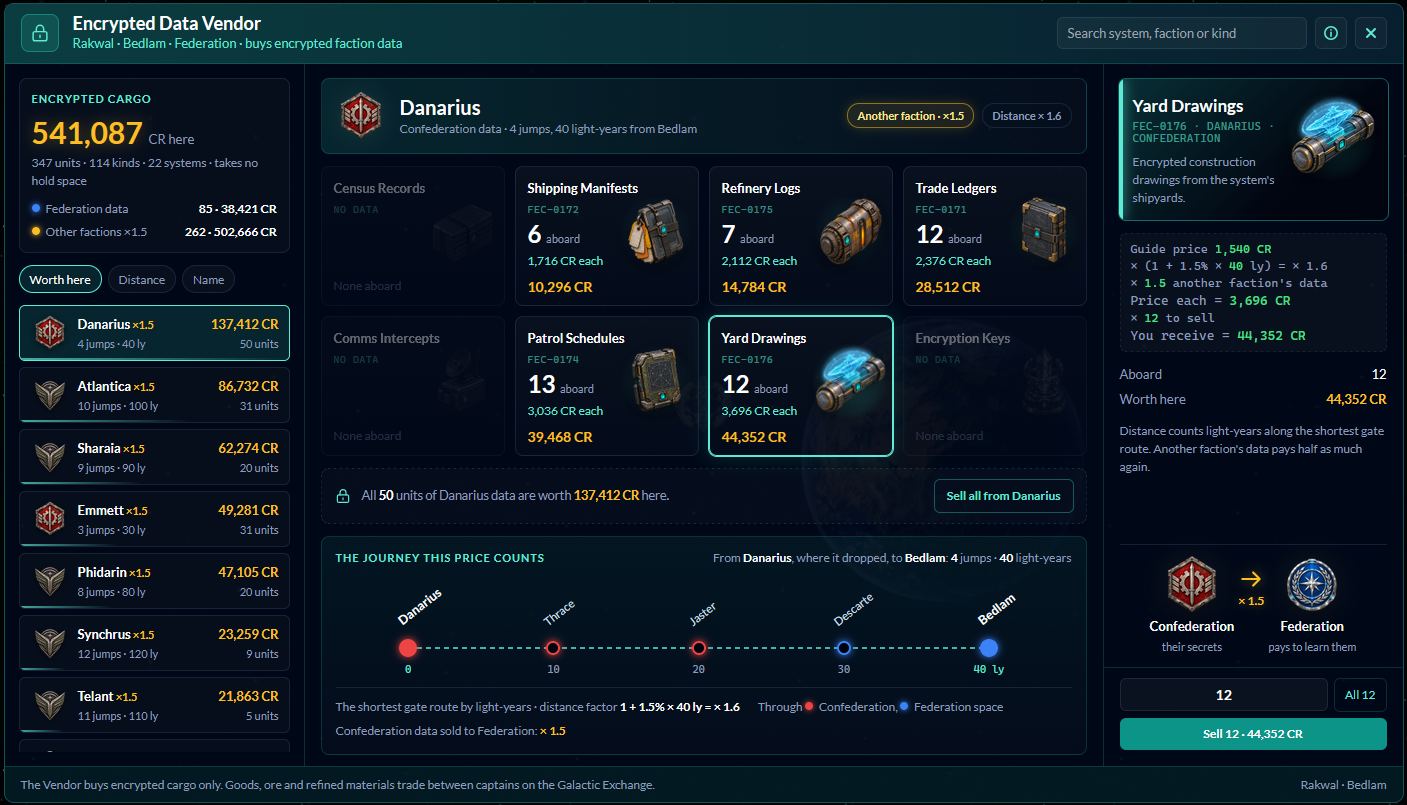
The Faction Data Vendor on every promenade has a brand new look: the Encrypted Data Vendor. Instead of one long table, your encrypted cargo is now grouped by the system it came from, so a hold of a hundred kinds reads as a short list of systems, each showing what its data is valued at this Vendor. Sort them by value, distance or name, or search by system, faction or kind.
Pick a system and its eight kinds of data appear as cartridges, each with its own picture, how many you carry, the price each and what the stack is valued at. Below them, the journey this price counts is drawn stop by stop: every system on the gate route from where the data dropped to this Vendor, in faction colours, with the light-years adding up as it goes.
Pick a kind and the price is worked out one step at a time: the guide price, times the distance factor, times 1.5 if it is another faction’s data, then times how many you sell. The faction emblems show whose secrets you are selling and who is paying to learn them. Sell some, sell all of one kind, or sell everything from one system with two clicks.
The top of the office shows your whole hold summed up: what it is worth here, and how much of it is this faction’s data and how much is another faction’s. It is also the first place you will see the new faction emblems, which will turn up in more places over time.
📦 Commercial Storage, rebuilt
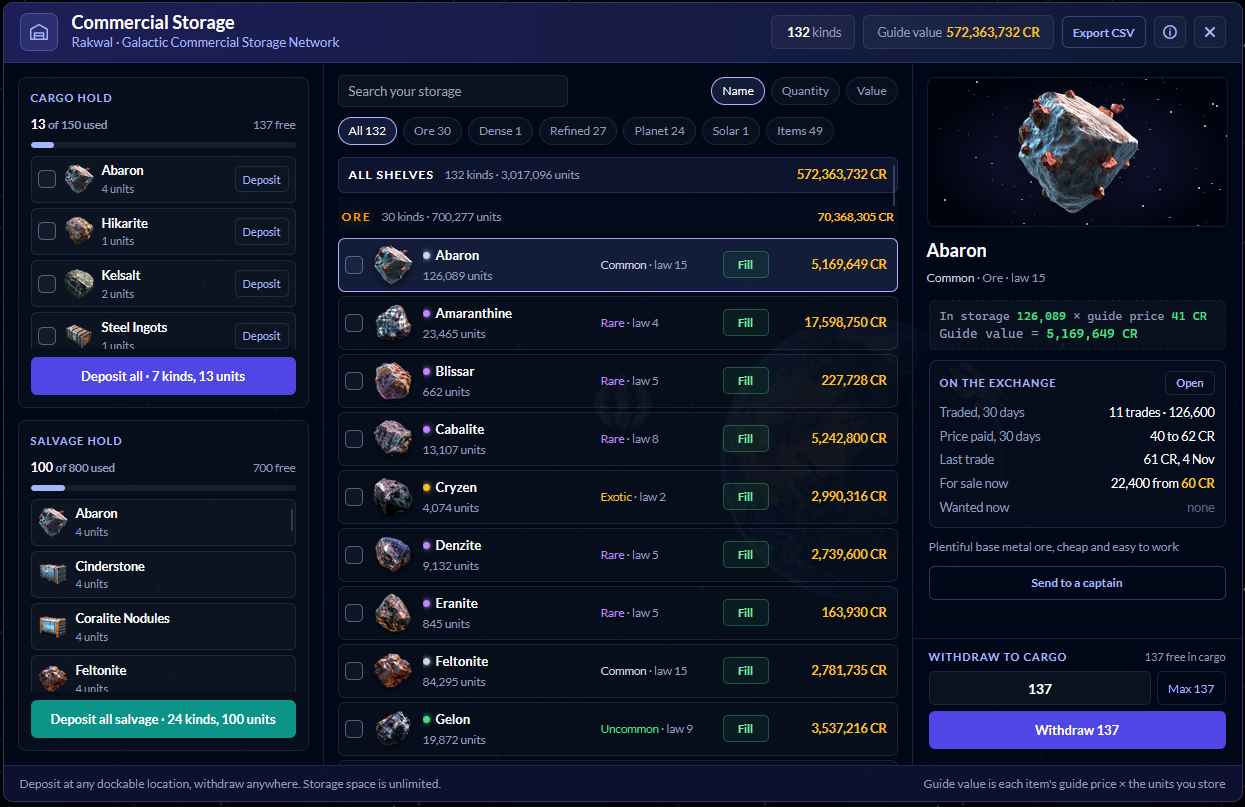
Commercial Storage has a new look built for a full store. Everything you keep is laid out on: Ore, Super Dense ores, Refined, Planet resources, Solar gases and Items, each with a header that stays in view as you scroll and shows how many kinds and units it holds and their guide value. Every item shows its picture, its rarity and law level, how many you have, and how many you are also carrying.
Jump straight to a section with the chips at the top, search by name, or sort by name, quantity or value. Each row has a Fill button that withdraws exactly as much as fits in your cargo hold.
To move several things at once, tick them. Tick items on the section to withdraw them together, or tick items in your cargo hold to deposit them together. They gather in a Move list that opens beside the store, so the item you are looking at stays on screen, and each one gets its own amount, with a Set all box when you want the same amount of each. The cargo bar shows how much will fit before you press the button, so you can never overfill your hold.
Pick any item to see it on the right: its picture, its guide value worked out from the guide price, what it has recently traded for on the Exchange with a button to open its market, a Withdraw box with Max for exactly what fits, and a Deposit box if you are carrying some. Send to a captain is there too.
Your ship sits on the left. Your cargo hold lists everything that can be transferred, with a Deposit button on each row and one button to put the lot away. Ships with an ore hold empty it in one click, the Vulture empties its salvage hold the same way, and capital miners unload their corporate ore straight to the Corp Store.
Export CSV still downloads your whole store as a spreadsheet.
🌌 Version 2.1 Galaxy Map, and every star its own sun
Every system in the galaxy now has its own kind of star. Red dwarfs are the most common, then orange stars, yellow stars like Feris, white stars, and the rare blue giants, and no two systems joined by a gate share the same kind. You will see your system’s star in space and in the info panel, and the Galaxy Map now draws each system as its own sun, sized by its kind, so the galaxy reads at a glance. The key in the corner shows all five, alongside the faction emblems.
The map has been opened out so close systems have room to breathe, without changing a single real distance: the light years and fuel on every gate are exactly as before. Each gate’s light years now sit on the gate itself, names are easier to read, and law levels show as a coloured tag under each name, green for patrolled space, yellow in between and red where the law runs thin. Each faction’s territory glows softly in its own colour, and your own system has a pulsing green ring.
Click any sun to open its system card. It shows the star itself, the faction, law level and description, and the route from where you are, with the number of jumps and the light years added up from the gates along the way. The same route is drawn in gold on the map. Below that is a chart of the system with every planet, station, asteroid field, jump gate and outpost in its place, in the same colours as your Nav map, and a list of every place with the services you will find there. Hover over a place in the list and it lights up on the chart, and the other way round. Click the sun again or press Escape to close the card; Escape no longer closes the whole map. Picking a system from the list at the top now opens its card too.
If your ship has an autopilot fitted, each place has an Autopilot here button that plots the route straight away. If it has none, the button now says Fit Autopilot in red instead of offering a route it could not fly; before, pressing it simply closed the map. The chat button also steps out of the way while the map is open.
The map IS WORK in Progress so keep that in mind, as i move through various elements on t hemap I will update it, but I wanted to get the core map out first.
⚡ Lighter item pictures
Screens that show lots of items at once now load small copies of the item pictures instead of the full size artwork, which is around thirty times lighter. The Refining Chart, the ore list and bays in the Refining Center, the materials at Station Repair and the cartridges at the Encrypted Data Vendor all open faster, especially on a slower connection, and look just as sharp. Large pictures, like the ore in the middle of the Refining Center, still show the full artwork.
🔧 Bug Fix
🔬 Remote refining now shows your Experience
Collecting finished refining jobs from out in space, with Remote Refining Collection, has always paid exactly the same Captain Experience and Engineering Experience as collecting them at a Refining Center. It just never said so. The Experience bar at the foot of the screen did not move until something else refreshed it, and nothing was written to your Captain’s Log, so it looked as if remote collections paid nothing.
Now a remote collection moves your Experience bar straight away, writes the Experience gained to your Captain’s Log and the materials collected to chat, just as a collection at the Refining Center does. The collection report also shows your full Captain Experience; before, it left out the part paid for the rarity and batches. Nothing you collected remotely was lost, it was all paid at the time. Thanks to Dirkish for spotting it.
🧭 NPC Missions jump counts stay up to date
The NPC Missions tracker shows how many jumps away each mission’s target system is, and lists the nearest first. Those counts were worked out from wherever you were when the list last loaded, and flying somewhere else did not refresh them, so a mission could still say 4 jumps when you were sitting one jump away.
Now the list refreshes the moment you arrive in a new system, whether you jump yourself, fly on autopilot or are recalled, so the jump counts and the nearest first order are always counted from where you actually are. The Cargo tab already worked this way. Thanks to Drylok for spotting it.