
Your Ship has a Cargo Bay, accessed by clicking the Green Cargo icon on the left-hand side of the screen. You can see the status of your cargo hold at a glance by looking at the ship’s primary stats.

Ships start with 100 Cargo space. You can then fit Cargo Expanders to increase this space. You can see above that the ship in question has a 110 cargo expander, giving the captain 210 space, of which he is using 123.
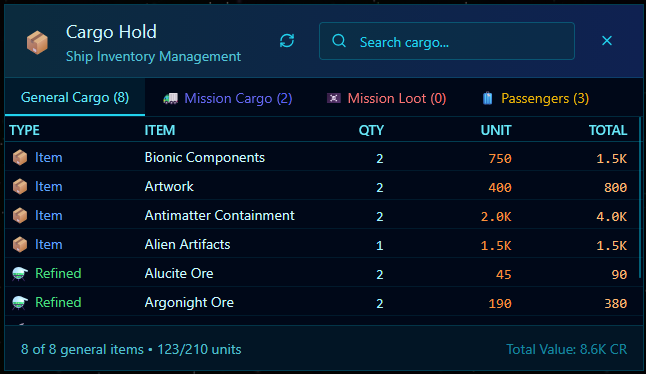
Above, you can see the Cargo Bay being displayed. It defaults to the General Cargo tab. This is where the Resources and commodities you need to trade in Forged Space appear. You can see they are broken down into types with icons to aid you at a quick glance.
You can see the quantity and unit value based on local purchase prices. This is a rough guide to the value of an item/stack and can be very handy when seeing what you’re collecting, say from combat loot.
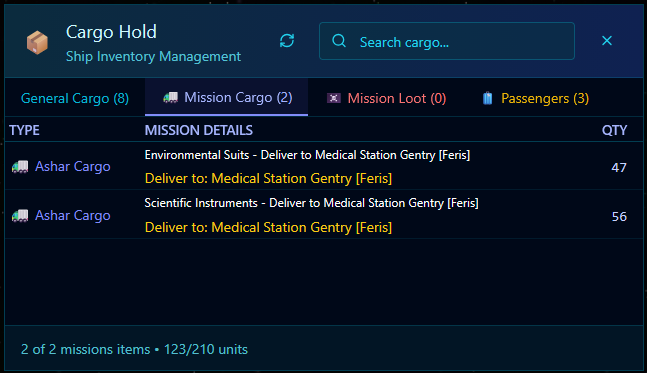
The next tab is the Mission Cargo Tab. This is where the Ashar mission cargo is placed. It also gives you details on the items and where the delivery is, including the system and, of course, the amount.
Mission loot tab is reserved for special loot that DOES NOT take up space. Things like Dog Tags are included in this type of loot. Generally, these will be items that can ONLY be collected whilst on that mission.
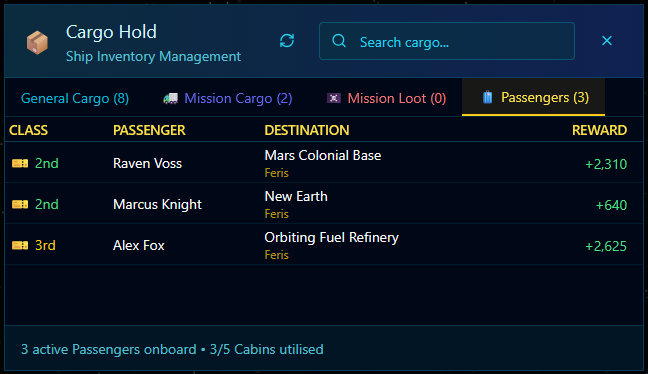
The Final tab is the Passenger Tab. This keeps an eye on any passengers you have on board, along with their destinations.